Virtualisation: Hyper-V, cluster and Veeam
Follow Hyper-V hosts, the failover cluster, forgotten checkpoints and Veeam backups, without changing anything
The Virtualization screen answers three operations questions: would the cluster survive losing a host, which VMs are dragging a forgotten checkpoint, and which ones are not backed up. The data comes from the FirstSI agent installed on the Hyper-V hosts and on the Veeam Backup & Replication server.
What you need
The Virtualisation module is opened organisation by organisation: if it is missing from the menu, ask the team that runs your platform. On the agent side, enable the Virtualization module on each machine concerned (see Manage agents). You need agent version 2026.10.11.4 or later.
| Machine | Recognised by | Collection |
|---|---|---|
| Each Hyper-V host, including each cluster node | the Hyper-V service vmms | every 15 minutes, the first one 3 minutes after the module is enabled |
| The Veeam Backup & Replication server | the VeeamBackupSvc service and PowerShell 7 | every hour, the first one 4 minutes after the module is enabled |
Install PowerShell 7 on the Veeam server, in its default folder (C:\Program Files\PowerShell\7). Veeam 13 refuses Windows PowerShell 5.1: without PowerShell 7, the agent collects nothing on that server.
The collection is light: about thirty seconds at most every 15 minutes on a host, about one minute per hour on the Veeam server. It stops by itself after 5 minutes if it has not finished.
On a machine that is neither a Hyper-V host nor a Veeam server, the module collects nothing. It reports this once a day, and the screen lists the machine in the line "Module enabled on machines that are neither a Hyper-V host nor a Veeam server".
Overview
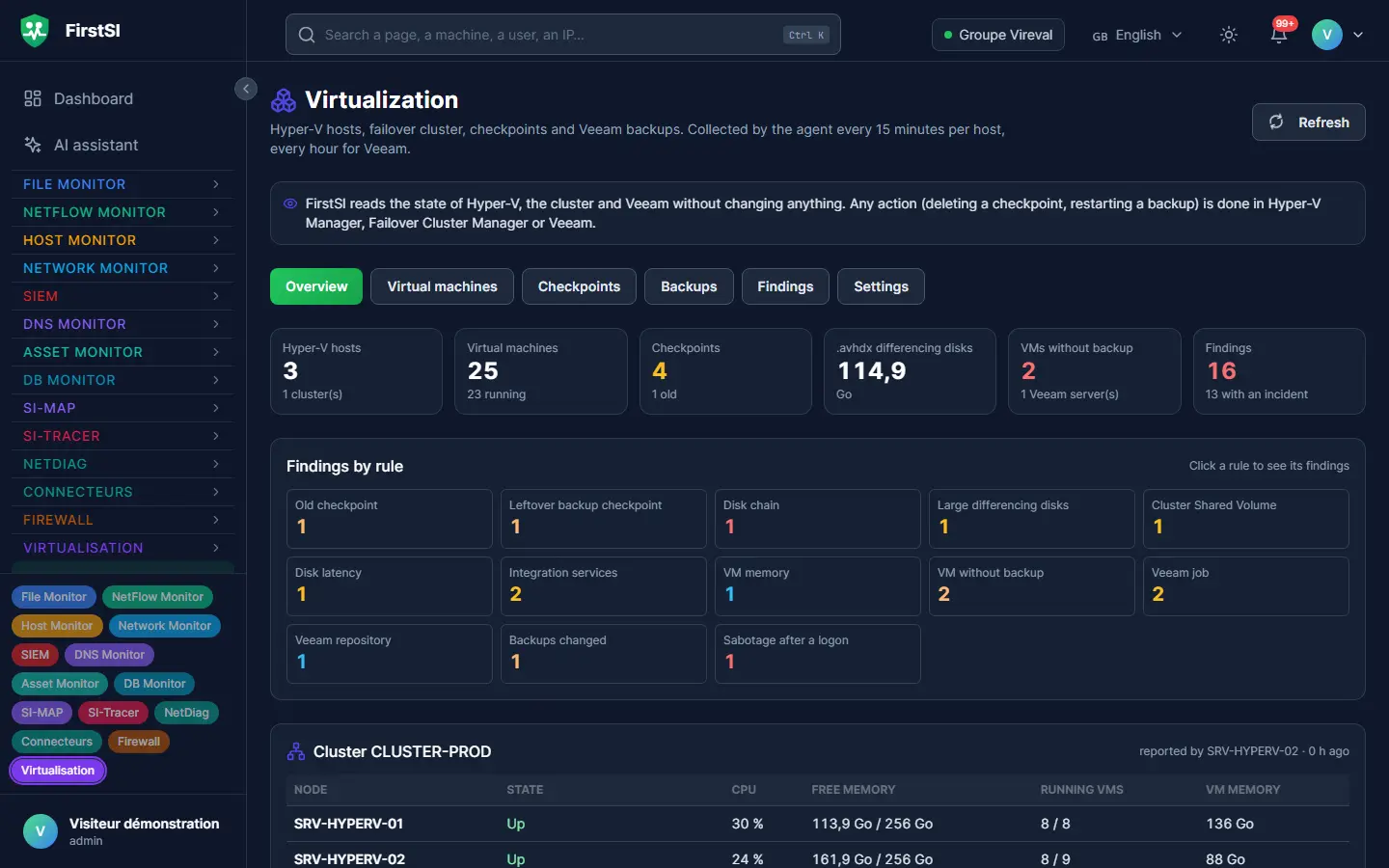
Open Virtualization (#/virtualisation, in the Virtualisation group). Six tabs: Overview, Virtual machines, Checkpoints, Backups, Findings, Settings. Refresh reloads the screen.
The tiles at the top show the Hyper-V hosts, the Virtual machines (and how many are running), the Checkpoints (and how many are old), the size of the .avhdx differencing disks, the VMs without backup and the Findings. The Checkpoints, VMs without backup and Findings tiles open the matching tab. Findings by rule counts the findings of each rule; click a rule to open its list.
For each cluster, the screen shows:
- the nodes, with their State, CPU, Free memory, Running VMs and VM memory;
- the Quorum: its type, the witness state and the active votes;
- If the busiest node fails: the memory of the running VMs on that node, compared with the free memory of the other nodes minus a reserve of 8 GB per host;
- each Cluster Shared Volume (CSV), with a space bar, the free percentage, the saturation forecast from the trend and the access from each node.
The capacity calculation shows "cannot be computed" as long as a node does not send its own report: enable the module on every node. Only the node that owns the cluster's core group sends the cluster part, so it appears once.
The Hosts table lists each host, clustered or not, with its vmms and clussvc services, the age of its last report and its findings. The Veeam line below gives the version and the age of the last report of each server.
Virtual machines
The tab lists the VMs: Host, State, vCPU, Memory (fixed or dynamic), Disks (count, size, complete or broken chain, .avhdx size), Checkpoints (count and age of the oldest), Last backup and Findings. Filter by cluster, host or rule, or type a name in Filter.
Clicking a row opens the VM's sheet: findings, Open incidents, resources, Veeam backup, disks with the whole file chain, checkpoints and network. Clicking an incident opens it in the SIEM. Close closes the sheet.
A VM migrated from one host to another stays the same VM: FirstSI follows it by its Hyper-V identifier, and the sheet says "migrated from" the previous host.
Checkpoints
The tab lists checkpoints from oldest to newest, with the VM, the host, the Name, the Type, the creation date, the Age and the size of the VM differencing disks. The age turns coloured when it raises a finding.
| Type | Where it comes from |
|---|---|
| Standard, Production | Created by a person, often before an update, then forgotten |
| Recovery | Created by Veeam during a backup. Veeam removes it at the end; if it stays, the backup ended badly |
A forgotten checkpoint makes its differencing file (.avhdx) grow with every write of the VM, until the volume is full. On a database or a domain controller, going back to an old checkpoint can also corrupt the data.
To keep a checkpoint you want, click Accept until a date on its row. The Settings tab opens with the VM, the checkpoint and a date 7 days ahead; click Add, then Save. A Recovery checkpoint cannot be accepted.
Backups
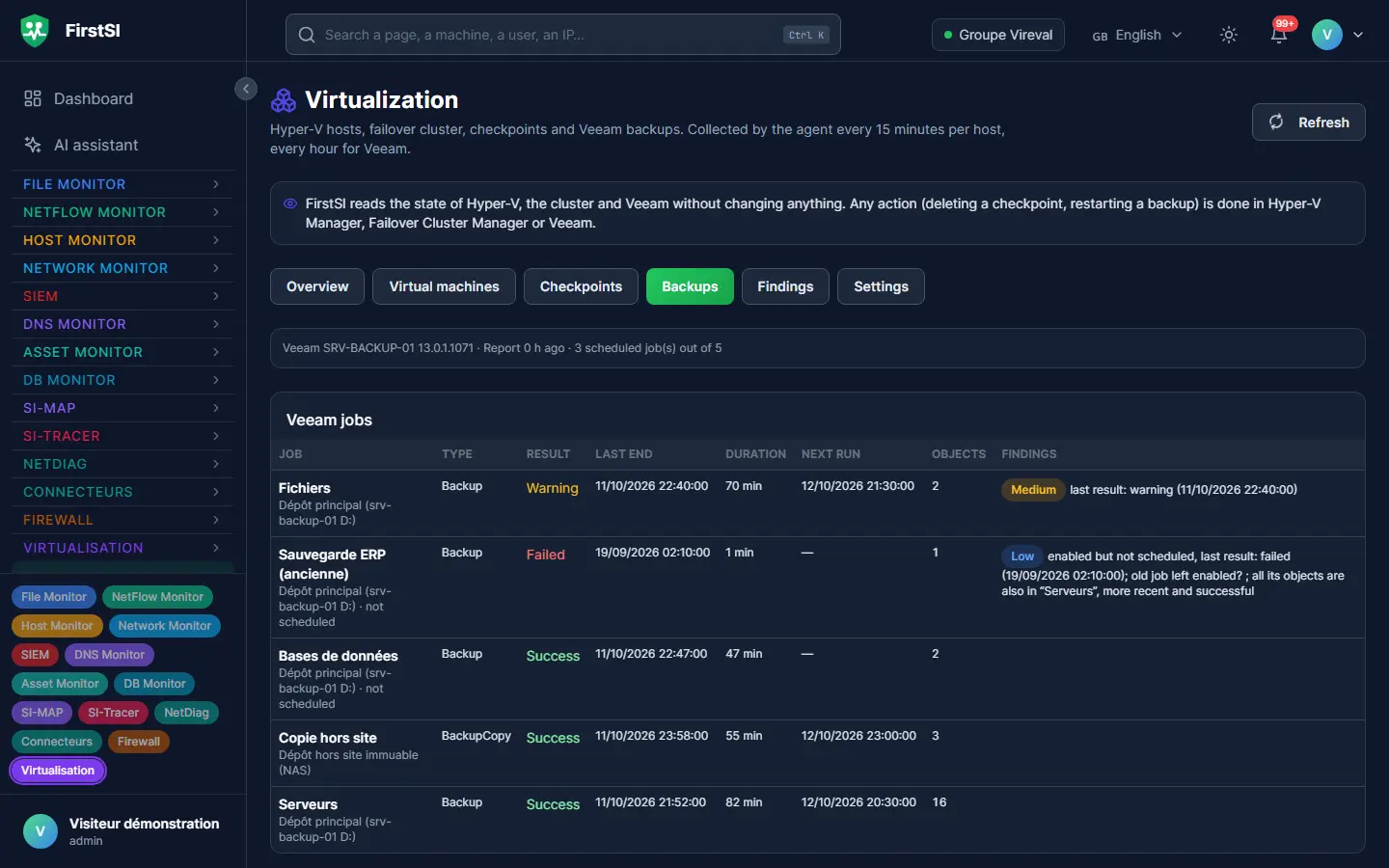
The tab follows Veeam Backup & Replication:
- Veeam jobs: for each job, its type, Result, Last end, Duration, Next run, number of Objects and findings. The target repository is written under the name, with the mention "not scheduled", "disabled" or "after" another job;
- Repositories: free space and the mention "immutable" or "not immutable";
- VMs in no Veeam job;
- Sessions with a long resource wait (48 h), when there are any.
A VM is matched with Veeam by its Hyper-V identifier when Veeam provides it, otherwise by its name, ignoring case. A job that targets a whole host or cluster covers all its VMs. A disabled job, or one only started by hand, does not protect the VM.
A stopped VM that is in no job is reported too. If that is intended (test VM, old VM kept switched off), declare it in Settings → VMs intentionally not backed up.
Reading the findings
The Findings tab has one line per object and per rule: VM, host, node, CSV, cluster, Veeam job or repository. Filter by rule, severity or name. The Rule column says whether the finding has opened an incident ("incident open") or not ("no incident").
A finding stays "no incident" in two cases. Either it is information, for example a VM stopped while it was running. Or it was already there at the first report and its rule waits for a change. At the first report, only these situations open an incident: checkpoints, broken chains, CSV state and space, nodes, quorum, cluster networks, VMs outside every Veeam job, sabotage detections. This is intended: a fleet discovered in one go does not open dozens of incidents for old situations.
The incident closes on its own when the finding disappears at the next report, except for the four sabotage detections: a person reviews and closes them. Its severity can go up, not down.
| Rule | What triggers it (default thresholds) | Severity |
|---|---|---|
| Old checkpoint (VIRT-CHECKPOINT) | Standard or Production checkpoint older than 24 h, than 72 h; from 24 h on a SQL Server or domain controller VM | medium, high |
| Leftover backup checkpoint (VIRT-CHECKPOINT-SAUVEGARDE) | Recovery checkpoint still there 6 h after the end of the VM's last Veeam job (24 h when no Veeam server reports) | high |
| Disk chain (VIRT-CHAINE) | parent file missing or unreadable; differencing disk in use with no checkpoint; chain beyond 3 files | critical, high, medium |
| Large differencing disks (VIRT-DIFFERENTIEL) | over 50 GB of .avhdx for a VM; growth beyond 5 GB per hour | medium, high |
| Cluster Shared Volume (VIRT-CSV) | CSV offline; under 15, 10 or 5 % free; saturation forecast within 30 days; redirected access from a node (except ReFS CSVs, always redirected) | critical to medium |
| Node or service (VIRT-NOEUD) | node down; node paused or drain failed; Hyper-V or Cluster service stopped | critical, medium, high |
| Quorum (VIRT-QUORUM) | witness offline; active votes below the total minus one | high |
| Role or VM not started (VIRT-ROLE) | cluster role failed; VM "that must be running" found stopped; VM stopped while it was running (information, 7 days) | high, medium |
| Cluster network (VIRT-RESEAU-CLUSTER) | network down or partitioned | high |
| Migrations and failovers (VIRT-MIGRATION) | live migration failed, failover or failed resource over 24 h | medium |
| Capacity after a node loss (VIRT-CAPACITE-N1) | the other nodes cannot take over the VMs of the busiest one; margin under 10 % | high, medium |
| Host CPU (VIRT-HOTE-CPU) | above 80 % or 90 % on two reports in a row | medium, high |
| Host memory (VIRT-HOTE-RAM) | under 8 GB or 5 % of available memory | medium |
| Disk latency (VIRT-LATENCE) | above 25 ms or 50 ms on two reports in a row | medium, high |
| Integration services (VIRT-INTEGRATION) | heartbeat missing on a running VM; domain controller synchronised with the host's time | medium |
| VM memory (VIRT-MEMOIRE) | dynamic memory at its maximum under pressure; SQL Server on dynamic memory (advice) | medium, low |
| VM without backup (VIRT-SAUVEGARDE) | running VM with no successful backup for 36 h; VM in no Veeam job | high |
| Veeam job (VIRT-TRAVAIL) | scheduled job failed, in warning, not run for 48 h; job replaced by a newer one (information) | high, medium, low |
| Veeam repository (VIRT-DEPOT) | under 15 % or 10 % free; resource wait beyond 10 minutes (information) | medium, high, low |
| No more reports (VIRT-RELEVE) | no report from a host for 1 h, from the Veeam server for 6 h | medium |
The VM without backup rule only applies when a Veeam server reports. A VM's SQL Server or domain controller role is taken from the AssetMonitor inventory and from the instances declared in DBMonitor.
Backup sabotage
Ransomware often goes after the backups and the hypervisor before encrypting. FirstSI therefore compares each report with the previous one and reports four suspicious changes:
| Detection | What triggers it | Severity |
|---|---|---|
| Backups changed (VIRT-SABOTAGE-SAUVEGARDE) | Veeam job or repository gone, a job's schedule disabled, a VM's restore points down by more than half for the same job | high |
| VM deleted (VIRT-VM-SUPPRIMEE) | VM missing from its host on two reports in a row, seen on no other host and no longer declared in the cluster | high |
| Mass shutdown (VIRT-ARRETS-MASSE) | 3 VMs or more going from running to stopped within 15 minutes, in the same cluster or on the same host | high |
| Sabotage after a logon (VIRT-SABOTAGE-SESSION) | one of the three detections above within 2 h of an interactive or Remote Desktop logon on a Hyper-V host or the Veeam server | critical |
The incident of a sabotage after a logon gives the account, the machine, the source workstation or address and the time of the logon. For this cross-check, also enable the agent's SI-Tracer module on the Hyper-V hosts and the Veeam server: it is the module that collects their logons (see SI-Tracer). Without it, the three other detections work, but not this one.
A deleted VM stays listed for 7 days in the VMs gone from every host box of the overview, the other detections for 24 h. Planned maintenance (VMs stopped together, Veeam job removed) triggers the same detections: resolve the incident in the SIEM with the False positive qualification.
Settings
Everyone can read the Settings tab; only an administrator can change it. Nothing applies before Save. Each save is written to the audit log, and the findings are recomputed straight away, without waiting for the next report.
| Setting | Effect |
|---|---|
| VMs intentionally not backed up | these VMs no longer trigger the "VM without backup" rule; a reason is optional |
| Checkpoints accepted until a date | the checkpoint raises no more findings until the chosen date; without a checkpoint name, all of the VM's checkpoints are accepted |
| VMs that must be running | one of these VMs found stopped opens a "Role or VM not started" incident |
| Sabotage detections | untick a detection to turn it off for your organisation |
| Thresholds | each threshold of the rules, with its default value next to it; Default values resets them all |
A VM is designated by its name, ignoring case. A "medium" threshold higher than the "high" threshold of the same rule is refused when you save.
Further reading
- VIRT-* incidents arrive in the SIEM with no correlation rule to enable, with the same notifications as other incidents. Each incident lists the actions to take in Hyper-V or Veeam.
- The AI Assistant reads this screen: "Which checkpoints are older than 3 days?", "Would the cluster survive losing a host?", "Which VMs are not backed up?".
- Ticket pre-diagnosis checks the VM named in a ticket, or the cluster and storage when a server is slow.
- The To handle list of the dashboard includes nodes down, CSVs under 10 % free, broken chains, checkpoints older than 72 h and VMs without a recent backup.
Frequently asked questions
"No virtualization report received yet". The Virtualization module is not active on any host, or the agent is too old. See The Virtualisation screen stays empty.
The Backups tab shows "No Veeam server reported". The module is not active on the Veeam server, or PowerShell 7 is not installed there. In the second case, the server appears in the line of machines that are "neither a Hyper-V host nor a Veeam server".
A VM switched off for months is reported as not backed up. It is in no Veeam job. Declare it intentionally not backed up, or add it to a job if you want to be able to restore it.
I deleted a checkpoint in Hyper-V and the screen still shows it. The screen shows the host's last report, which can be up to 15 minutes old. The incident closes at the next report.
Can FirstSI delete the checkpoint for me? No. The screen only reads; deletion is done in Hyper-V Manager or in Veeam.
Source: · FirstSI Docs · updated 2026-10-12