Connectors: read your applications
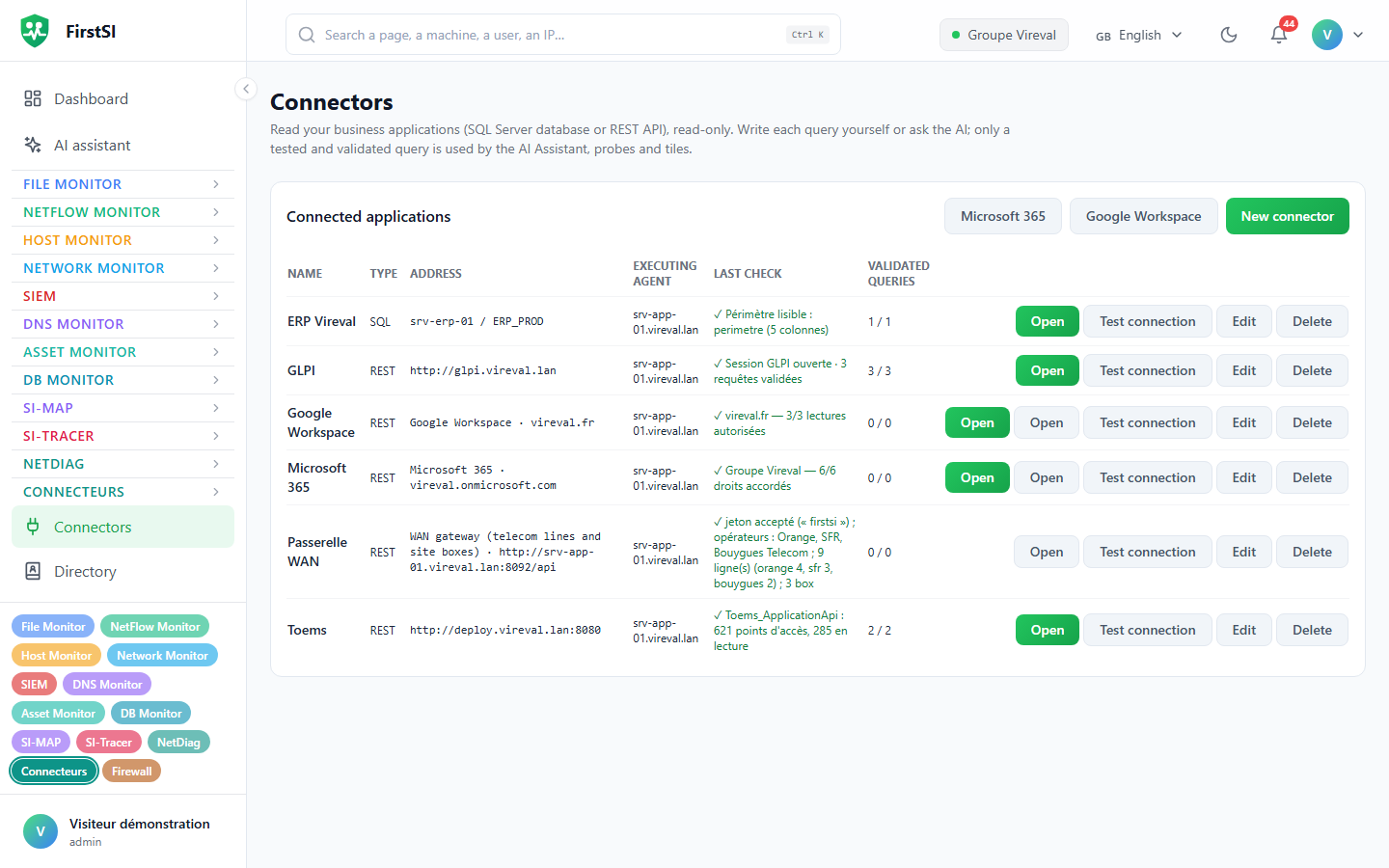
Connect a REST API or a SQL Server database read-only, write a query or have the AI suggest one, test it and validate it before use.
A connector reads one of your applications, read-only: a REST API (with its OpenAPI description if it has one) or a SQL Server database. You write each query yourself or have the AI suggest it. Only a query that has been tested and then validated can be used by the AI Assistant, a probe or a tile.
Before you start
Calls go out from an agent on your network, or from the FirstSI server when the API is public on the Internet. Enable the Annuaire module (directory) on an agent that can reach the application (gear button on its card in FSI Agents).
Declare a REST API
Connectors → New connector, type REST API:
| Field | Example |
|---|---|
| Base address | https://deployment.example.local/api |
| OpenAPI / Swagger description (path, optional) | /swagger/v1/swagger.json (the AI uses it to browse the endpoints) |
| Executing agent | the agent that sits on the application's network |
| Authentication | None, Key in a header, Bearer token, Basic (user:password), Key in the URL, Integrated Windows (agent's account), Username and password → token (OAuth), Session token (GLPI), Application identity → token (OAuth client_credentials) |
| Secret | entered here and nowhere else; it is encrypted and never shown again |
| Purpose (GDPR register), Data concerned | for your register of processing activities |
If you don't know where to begin, AI help to declare the application takes a one-sentence description. The AI looks for the OpenAPI description, works out the authentication, and suggests a description, a purpose, the data concerned and a few first queries. It reads no data, and you still enter the secret yourself.
Declare a SQL Server database
| Field | Example |
|---|---|
| SQL server (HOST, HOST\INSTANCE or HOST,PORT) | SRV-SQL01, SRV-SQL01\INSTANCE or SRV-SQL01,1433 |
| Database | Operations |
| Authentication | Windows (the agent's computer account) or a dedicated SQL login |
| Readable perimeter (required) | a single SELECT that gathers the data you are allowed to read |
The account must only have read access (db_datareader, or SELECT on the perimeter's objects alone). The agent refuses to read with an account that has write permissions.
The connector never reads the whole database. Queries, the AI Assistant and assisted building only see the perimeter, which is queried with FROM perimetre. To write that perimeter, Full database structure shows the names and types of tables and columns, without any data.
Write a query
Open the connector, then Write a query. You can also start from Browse tables or Browse read endpoints, then Use.
A query has a Technical name, a Label and a description of what it returns. Take care over that description: it is what the AI Assistant reads to pick the right query.
In SQL, it is a single SELECT on perimetre, with @name parameters. In REST, you give the method, the path, the URL parameters ({param}), the path of the list within the response, and the fields to keep. When two calls have to be chained (find a computer, then read its connections), choose Several chained steps: one step exports a field, an identifier for instance, that the next step uses.
Each parameter has a type (text, integer, number, date, yes/no, list), a default value, optionally a list of allowed values, and can be required. You also set Masked columns (personal data), Max rows and Timeout (s).
Ask the AI for it
Ask the AI, then describe the need in one sentence, for example "deployment tasks in progress with the computer and start time". The AI digs through the structure, chains steps if needed, tries the query if you tick Show the AI a sample (5 rows, sensitive columns masked), then proposes and explains its result. Open in the editor copies it over so you can check it.
Test, validate, use
- Save and test with sample values. The result shows the number of rows, the duration and the outcome of the read-only checks.
- Validate. Only a tested version can be validated, and the validated version stays in service until you validate another.
- Tick the uses:
| Use | Effect |
|---|---|
| AI assistant | The assistant can call it for the Allowed roles; Sensitive data (administrators only) reserves it for administrators |
| Probe | Run at intervals, on the chosen days and hours; Normal when no rows, at least one row, value below a threshold, value between a and b; with a severity |
| Tile | Shown as a tile |
If the application changes and the query stops working, it switches to Broken. Disable takes it out of service without deleting it, and Versions keeps the history.
Special connector roles
The Connector role field gives the connector a specific job. WAN gateway is for telecom lines and site boxes (see WAN gateway). The ticketing tool, for its part, is chosen in Ticket pre-diagnostics. Microsoft 365 and Google Workspace have their own template: see Microsoft 365 and Google Workspace. For a 3CX phone system, see 3CX phone system.
The optional Public address is the one your teams open in their browser (https://support.example.com). It is only used to build clickable links, to knowledge base articles for instance. FirstSI never calls it.
Source: · FirstSI Docs · updated 2026-10-10