Ticket pre-diagnostics
For every new ticket, FirstSI checks the account, the computer, the other tickets and whatever the request type calls for, then adds a private note and suggests a category.
When a ticket comes in, pre-diagnostics does everything that can be checked before a technician looks at it: the person's account, their computer, their other tickets, then the checks tied to the type of request (site Wi-Fi, VPN, printer, Microsoft 365, mobile line…). It posts the result as a private follow-up in the ticket and can suggest a category.
How it works
FirstSI picks up new tickets from the ticketing tool (GLPI today), at regular intervals or as soon as a webhook notifies it. It gives the ticket a type based on its keywords, with title words counting double, or on the category already set; the AI only decides as a last resort.
Then come the checks. The baseline applies to every type: the person's account, their computer, the requester's other tickets. Each type adds its own checks, for example NetDiag and the tunnels for "Network", the VPN gateway for "VPN / remote work", Microsoft 365 for email, the line or the box and the 3CX phone system for telephony.
Finally, the AI writes a summary: the most likely lead and the facts that support it. For a request (adding someone to a group, a new starter), it describes what needs to be done instead. Everything goes out as a private follow-up, with the category if the ticket is still unassigned.
Set it up
- Declare the ticketing tool as a connector, with a read-only account.
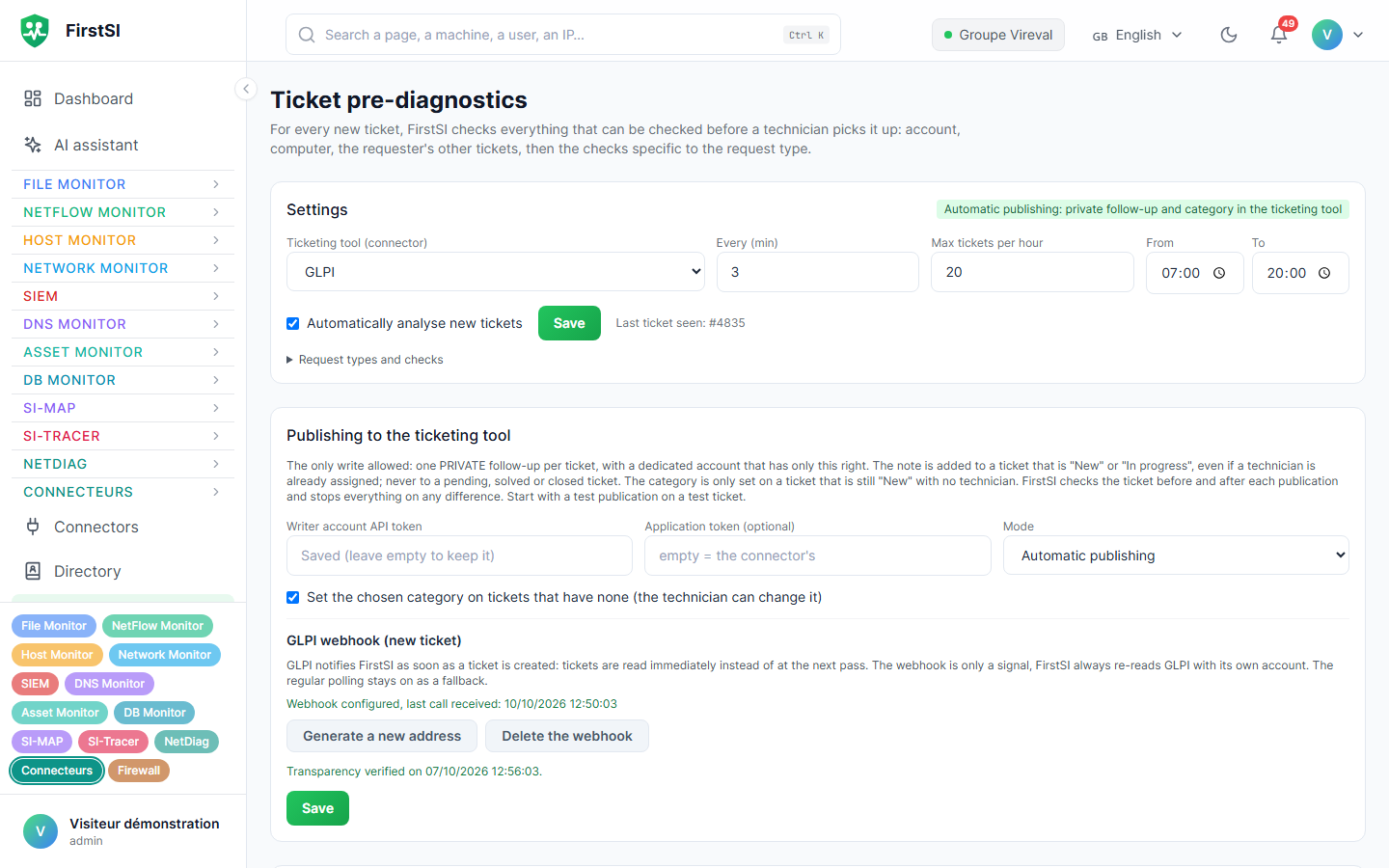
- In Pre-diagnostics → Settings, choose the Ticketing tool (connector), the frequency (Every (min)), the Max tickets per hour, the time window (From / To), and tick Automatically analyse new tickets.
- Stay in Draft (nothing written) mode first: nothing is written to the ticketing tool, and you read the results in Latest analyses (30 days).
- Try it on real tickets with Ticket number then Analyse this ticket. It is read-only, and works on tickets that have already been handled too.
Switch to publishing
In Publishing to the ticketing tool:
- In the ticketing tool, create a writer account used for nothing else: adding follow-ups, and changing the category if you allow it. Enter its Writer account API token.
- Publish to a test ticket with Publish to GLPI. FirstSI checks that the ticket hasn't changed (status, assignment, acknowledgement), then shows when that check was passed.
- Switch to Automatic publishing mode.
The safeguards are strict. Only one write is allowed per ticket, the private follow-up. The note goes on a "New" or "In progress" ticket, never on one that is pending, solved or closed. The category is only set if the ticket is still "New" with no technician. FirstSI checks the ticket's state before and after every publication, and turns automatic publishing off at the slightest discrepancy (an "ANOMALIE: …" message).
Republish adds a new "update" follow-up with the current analysis; the previous one stays in the ticket.
Request types
The Request types and checks table has one row per type: its name, its Keywords, the Checks to run and, if needed, the ticketing tool categories that lead to it. Put your own vocabulary in it: application names, site names, in-house abbreviations.
The Category rules (take priority) say "if this word appears, use this category". They come before the automatic choice, in list order.
Among the default types, Départ d'un collaborateur ("sorti des effectifs", "fin de contrat"…, i.e. leaving the workforce, end of contract) is handled as a request: it lists what is attached to the person, their Microsoft 365 account, their mobile line (found by name when no number is quoted) and knowledge base articles.
What pre-diagnostics also spots
| Situation | What the note says |
|---|---|
| Email reply to an old ticket that actually carries a different request | The ticket is analysed on the new message, and the note says "treat as a new ticket". A plain "thank you" stays part of the original ticket |
| Name to correct ("my name is misspelt") | With no account under the exact name, an account with a close name is suggested and flagged as such |
| Scam attempt (bank details, payment or a code demanded by a website or a message) | A warning at the top of the note: the person must not enter or pay anything |
| Request worded like a fault (SIM card, rights in an application, ordered equipment) | The note follows the request format: what is requested, before carrying it out, where and how |
| Same subject from another requester | "To be linked": two different requesters are never suggested for merging |
Webhook
GLPI webhook (new ticket) → Generate the webhook address, then copy the address into GLPI (Setup → Webhooks, item Ticket, event New item, method POST). It is shown only once. The webhook only gives a nudge: FirstSI always rereads the ticket with its own account, and the regular pick-up carries on as a backup.
Knowledge base
If the read account has access to the ticketing tool's knowledge base, the knowledge base check lists articles whose title matches the ticket, with a link. For the links to work, fill in the connector's Public address.
Measuring: the review
Review: the bot versus the team compares what pre-diagnostics suggested with what the team did: categories kept or corrected, leads that were right, partly right or wrong given the recorded solution, tickets still "New" after 24 h. It is calculated every Monday for the previous week, or on demand with Calculate (last 7 days).
Improving the leads
The most effective lever is the AI guidelines, with the Ticket pre-diagnostics scope: how your sites are organised, in-house vocabulary, common causes.
Source: · FirstSI Docs · updated 2026-10-10