Microsoft 365
Understand why a Microsoft 365 or SSO sign-in is refused, check an account and its multi-factor authentication, follow Microsoft incidents; connect the connector.
The Microsoft 365 screen reads, on demand, a person's Microsoft Entra ID logs: their sign-ins to Microsoft 365 and to SSO applications, with the exact reason for each refusal, their account and their multi-factor authentication methods. Nothing is stored, and every lookup is logged together with the name of the person looked up.
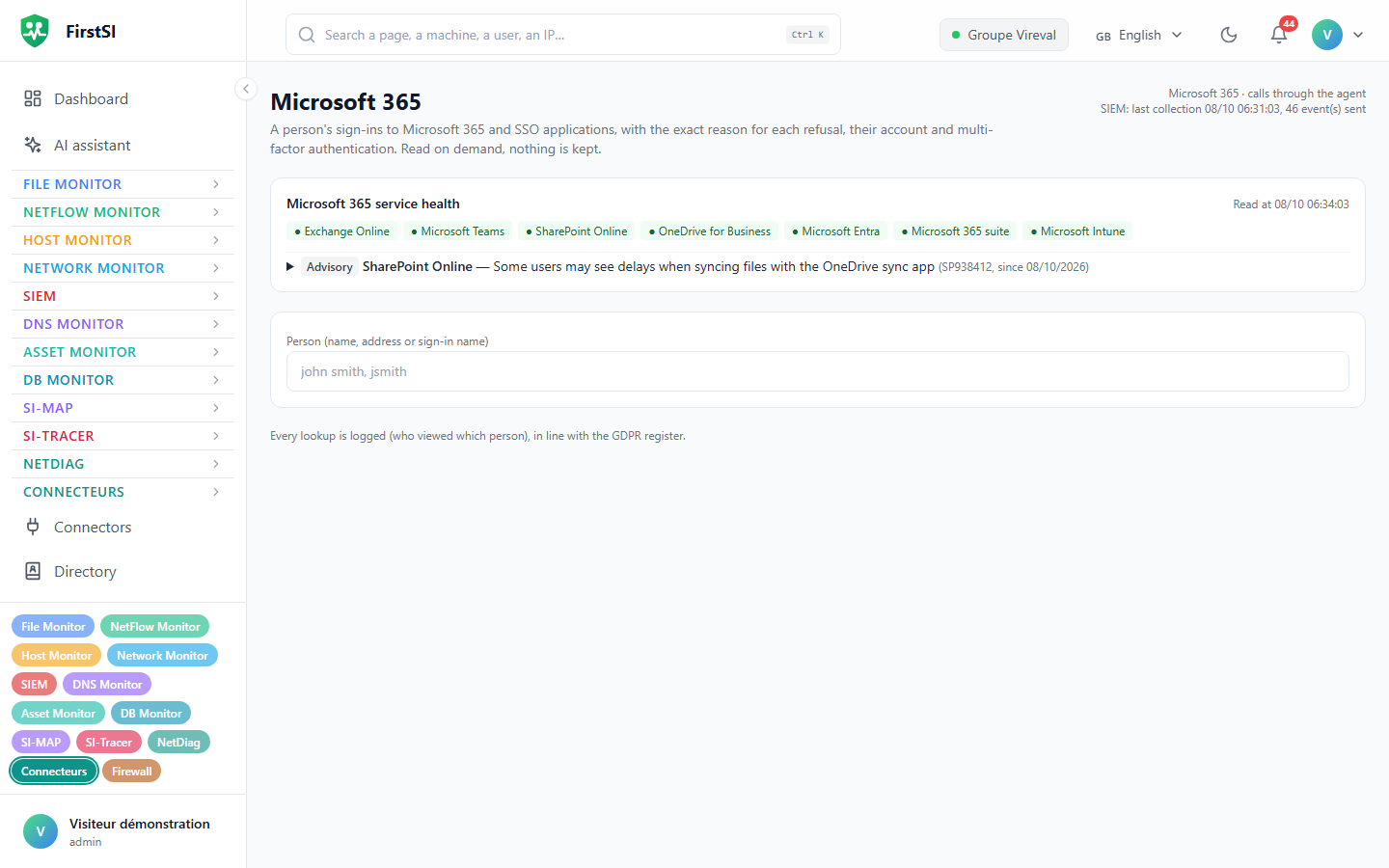
Looking up a person
Open Microsoft 365 (#/microsoft365, in the Connectors group). The top of the page shows Microsoft 365 service health, that is, the incidents and advisories currently open at Microsoft. Then type a name, an address or a sign-in name in Person (name, address or sign-in name).
The page tells you whether the account is enabled or disabled, whether it comes from on-premises AD or was created in the cloud, when the password was last changed, the latest sign-ins, the licenses and the Authentication methods.
Sign-ins tab
Choose the period and the kind of sign-ins (entered by the person, background applications, or all), and tick Failures only if you are looking for a refusal.
Failure reasons groups refusals by code, with a plain explanation. Watch out for Intermediate steps: MFA prompt, account picker, "stay signed in?". Microsoft counts them as failures, but they are normal steps.
For each sign-in you see the application, the result, the location, the device (compliant, managed), multi-factor authentication and Conditional access (rules satisfied, blocked by a rule…).
Sign-ins reach the Microsoft logs a few minutes late, and these logs require an Entra ID P1 license.
Audit log tab
Changes made to the account (password reset, MFA method added, group…) and who made them.
Connecting the connector (administrator)
Under Connectors, new connector, Microsoft 365:
- In Entra ID (global administrator): App registrations → New registration, for instance "FirstSI read", with no redirect URI.
- API permissions → Microsoft Graph → Application permissions:
AuditLog.Read.All,Directory.Read.All,User.Read.All,UserAuthenticationMethod.Read.All,ServiceHealth.Read.All, then Grant admin consent. - Certificates & secrets → New client secret.
- In FirstSI: Entra directory (tenant) ID, Application (client) ID, Client secret (encrypted, never shown again), the agent to go through, and Viewing open to: (the roles allowed; operators by default).
- Save, then Test: each permission is checked and your organization's name is displayed.
When the calls go through an agent, they leave from your network: Microsoft sees a known address, and there is no port to open.
The console warns you before the client secret expires. Create a new secret in Entra and enter it in the connector before that date.
Sending refusals to the SIEM
The Send failed sign-ins to the SIEM option collects, every 5 minutes, refused sign-ins (excluding normal steps) and successful sign-ins from an unusual country, defined by the Usual countries (ISO codes) list. Then turn on the "Microsoft 365" rules under SIEM → Rules. Ordinary successful sign-ins are not kept.
In the assistant and pre-diagnostics
The AI assistant can read the same information for authorized roles. Ticket pre-diagnostics check sign-ins, the account and Microsoft service health when a ticket mentions e-mail, Teams or signing in.
Frequently asked questions
"Microsoft 365 viewing is not open to your role." The administrator has restricted the roles allowed on the connector.
"Not available (permission or licence)." instead of the sign-ins. AuditLog.Read.All or its consent is missing, or the Entra ID P1 license.
Source: · FirstSI Docs · updated 2026-10-10